|
Because there are SO many different GPS units previously sold I ask
you to please take a photo of it and email it to me so that it can be
identified. Nearly all units can be updated.
A few tips:
To make units run faster select a standard voice.
TTS voices use a lot of processing power and are
generally not needed.
If you get an out of memory error change the voice.
The voice files are changed by selecting Settings, then
Regional.
When you get your new software the very first time you
load it may take a minute of so (as data is written to
the new SD card).
If your unit is not currently running IGO then you
need to go into the navigation set up and tell your unit
to run the IGO software on the SD card.
If your unit is running internal software (such as the
GPS mirrors) then you will need to go into the
navigation software setup and change the path to the SD
card
Updating Points of Interest.
There are 2 main POI websites -
www.ozpoi.com
www.poidb.com
The IGO software you will be using
is IGO8 KLM files.
Follow the instructions on the website.
The POI files you download should be put in
content\userdata\poi where you will find 100 or so
loaded POIs.
Getting the logo to display is a little difficult but I
will get a youtube video done. For those who need
in the mean time please call the office on the number
listed.
Also in the future you can use these websites for update
Red Light and Speed cameras.
If your unit cannot be identified or is
unknown
There are only a few steps needed to load the new
software.
1) back up your existing SD card. In the root
directory you will see a file called sys.ini. Open
this file and note the contents of
The raw display details of your old card will tell
you the screen size.
[rawdisplay]
screen_x=480
screen_y=234
Other sizes are:
240 , 240
240 , 320
240 , 400
320 , 240
320 , 320 3.5" units
300 , 234
400 , 240
480 , 234 common 4.3". 6.2" 7"
480 , 272 common
800 , 480 HD panels
2) when you get your new card copy the information onto
the new SD card. (back up the new card first -
just in case :) )
3) When you have loaded the new software on your unit
you next need to tell your software about the hardware
being used.
Simply
1) go to the main menu
2) press the arrow bottom right
3) press the GPS button
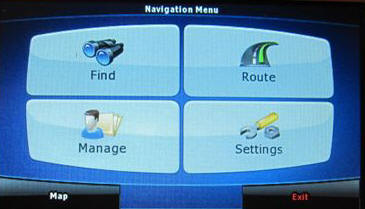
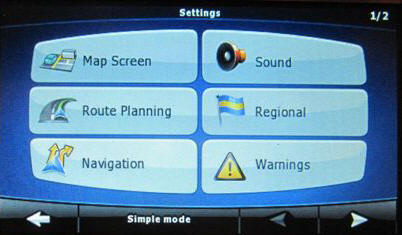
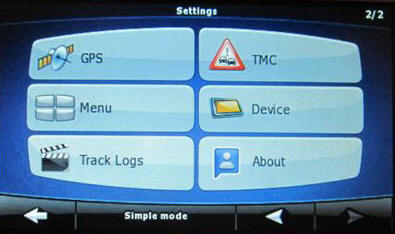
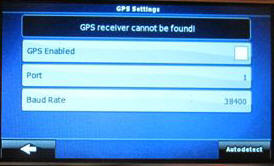
Your software may display the GPS is connected or
not. Either way untick this and press the
Autodetect button
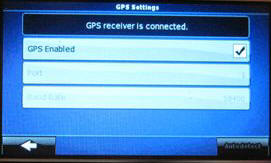
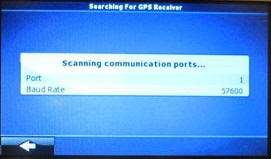
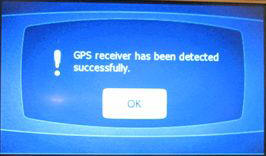
the software will scan for the hardware
and that is it!
|